Why was my first in-app purchase rejected or stuck in review?
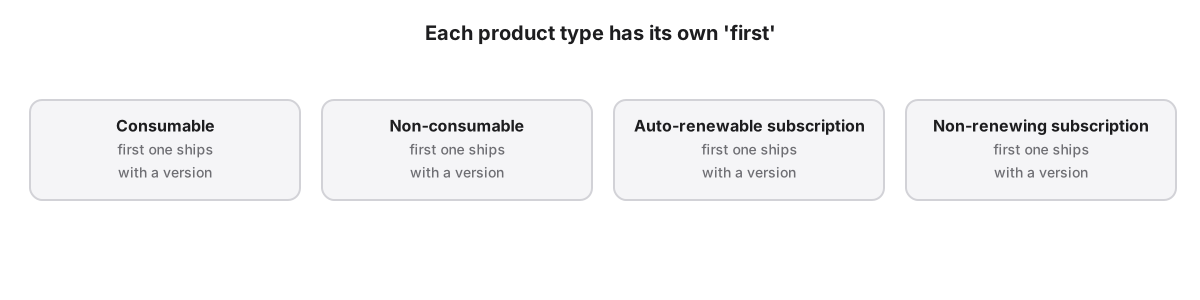
Apple requires the first in-app purchase of each type, consumable, non-consumable, auto-renewable or non-renewing subscription, to be submitted together with a new app version. Sent alone, it cannot be approved. Add the product to a submission that includes a version using it, with its review screenshot and availability set.
A first in-app purchase is reviewed as part of the app that sells it. Apple needs to see the purchase working in a build, so the product and an app version travel in the same submission. Breaking that pairing, or missing metadata, are the first things to check when a first product is stuck or rejected.
Why must a first in-app purchase ship with a version?
Apple requires the first in-app purchase of each type to be submitted with a new app version, so App Review can test the purchase inside the build that offers it. After the first product of a type is approved, later products of that type can go to review alone, provided the app already has an approved version.
The rule is in Apple’s guide to submitting an in-app purchase. A version submitted without its first product causes the opposite problem: the app is approved with a paywall whose product is still waiting, so purchases cannot complete.
What does each in-app purchase status mean?
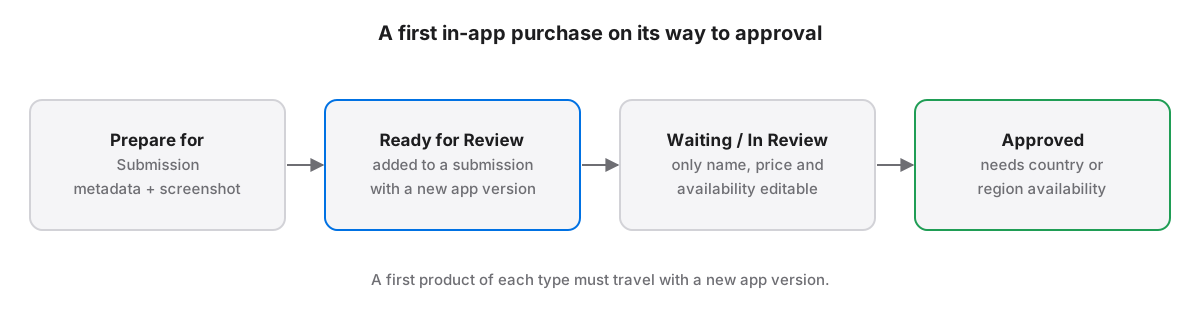
An in-app purchase starts in Prepare for Submission, moves to Ready for Review once added to a submission, then Waiting for Review and In Review. Accepted means the product passed but another item in the same submission was rejected. Approved requires country or region availability to be set.
The full list is in Apple’s in-app purchase statuses. From Ready for Review and while Waiting for Review or In Review, only the reference name, pricing and availability can be edited. A product in Accepted cannot become Approved until the rejected items are accepted or removed from the submission.
Why was only the localization rejected?
In-app purchase localizations have their own review status: Prepare for Submission, Waiting for Review, Approved or Rejected. A rejected localization means App Review objected to that language's display name or description, not necessarily to the product itself, so fix the text and resubmit it.
Display names and descriptions are shown to customers, so they follow the same accuracy rules as the listing. A translated name that promises more than the product delivers, or that differs from what the paywall shows, is a common reason to check first.
How do you resubmit a rejected in-app purchase?
Edit the rejected in-app purchase, click Update Review, then click Resubmit to App Review once every rejected item is resolved or removed. If you pulled it from review yourself, its status is Developer Rejected and Add for Review adds it again. A first product of its type needs an app version too.
Before resubmitting, confirm the product has a review screenshot, a localization, a price and availability. App Store Localization for Mac's submit step refuses to send a version while one of the app's products sits at Ready to Submit, because sending the version alone would ship the paywall without its product.
App Store Localization for Mac reads and plans every change for free; a one-time license applies them. macOS 26 or later.
Key takeaways
- The first in-app purchase of each type must be submitted together with a new app version.
- Later products of that type can go alone once the app has an approved version.
- Accepted means the product passed but another item in its submission was rejected.
- A rejected localization is a text problem in one language, fixed by editing and resubmitting.
- Never submit a version whose paywall depends on a product still waiting to be reviewed.
Frequently asked questions
Can I submit an in-app purchase without a new app version?
Only after the first product of that type has been approved and the app has an approved version. The first consumable, non-consumable, auto-renewable subscription and non-renewing subscription must each be submitted together with a new app version, so App Review can test the purchase in the build.
What does Accepted mean for an in-app purchase?
Accepted means App Review passed the in-app purchase but rejected at least one other item in the same submission. The product cannot be approved until those items are accepted or removed from the submission. Fix or remove the rejected items, resubmit, and the accepted product moves to Approved.
Why is my in-app purchase approved but not for sale?
Approval requires country or region availability to be set, and a product removed from sale shows Developer Removed from Sale. Check the product's availability and price, and confirm the app version that uses it is live, because an approved product still needs a released build that offers it.